Arbilest documentation
Arbilest finds price gaps between Polymarket and sports bookmakers, executes the Polymarket leg for you and tells you exactly what to place at the book. This guide takes you from an empty account to your first covered arb on a $10 stake.
What Arbilest does
An arb (also called a fork or surebet) is a pair of opposite bets whose combined odds guarantee a profit whichever way the match goes. Arbilest pairs one leg on Polymarket with one leg at a bookmaker.
- Polymarket leg. Placed by the terminal from your own Polymarket wallet, through a scoped session key. You see the live order book and choose a limit or market entry.
- Bookmaker leg. Placed by you, by hand, in your bookmaker account. The terminal tells you the outcome, the odds it saw and the stake that balances the arb.
Returns are shown as ROI: net profit on total money placed across both legs, after Polymarket's taker fee for that sport. A 2% ROI on $20 total is $0.40, whatever the result.
Arbilest never holds your funds. Money stays in your Polymarket wallet and in your bookmaker accounts. The terminal can place and cancel Polymarket orders, nothing else.
Quick start
The terminal shows the same seven steps as a guide strip above the scanner, and ticks them off as you go. If you closed it, the Guide button in the bottom bar brings it back.
- Connect Polymarket Settings → Polymarket account → Sign with wallet. One signature in MetaMask or Rabby. Details
- Fund the balance $10 of USDC on Polymarket is enough for the first arb. Details
- Pick your bookmakers Tick the books where you have a funded account. Details
- Beginner filters Prematch only, ROI from 1%, PM liquidity from $1K, kick-off within 24 hours. Details
- Open an arb Click the top row of the scanner. Details
- Place the Polymarket leg on $10 Type 10 into the calculator's book stake, check the price, press Buy. Details
- Cover at the bookmaker When the order fills, place the shown bet at the book and press Placed. Details
1. Connect your Polymarket account
The terminal needs permission to place orders from your Polymarket wallet. It gets that permission through a session key: a separate signing key that Polymarket's Deposit Wallet authorizes for trading only.
Sign with your wallet
- Open ⚙ Settings. The first block is Polymarket account.
- Press Sign with wallet. The button names the extension it found, MetaMask or Rabby.
- Approve the connection in the wallet. Make sure the selected account is the one you use to log in to polymarket.com.
- The terminal switches the wallet to the Polygon network if needed and asks for one EIP-712 signature. Confirm it.
- Wait while Polymarket confirms the authorization on-chain. This takes up to 2–3 minutes. The block then shows Connected with a session key, your wallet address and the key's expiry.
- Press Test connection under the settings form. It should report mode
sessionand your USDC balance.
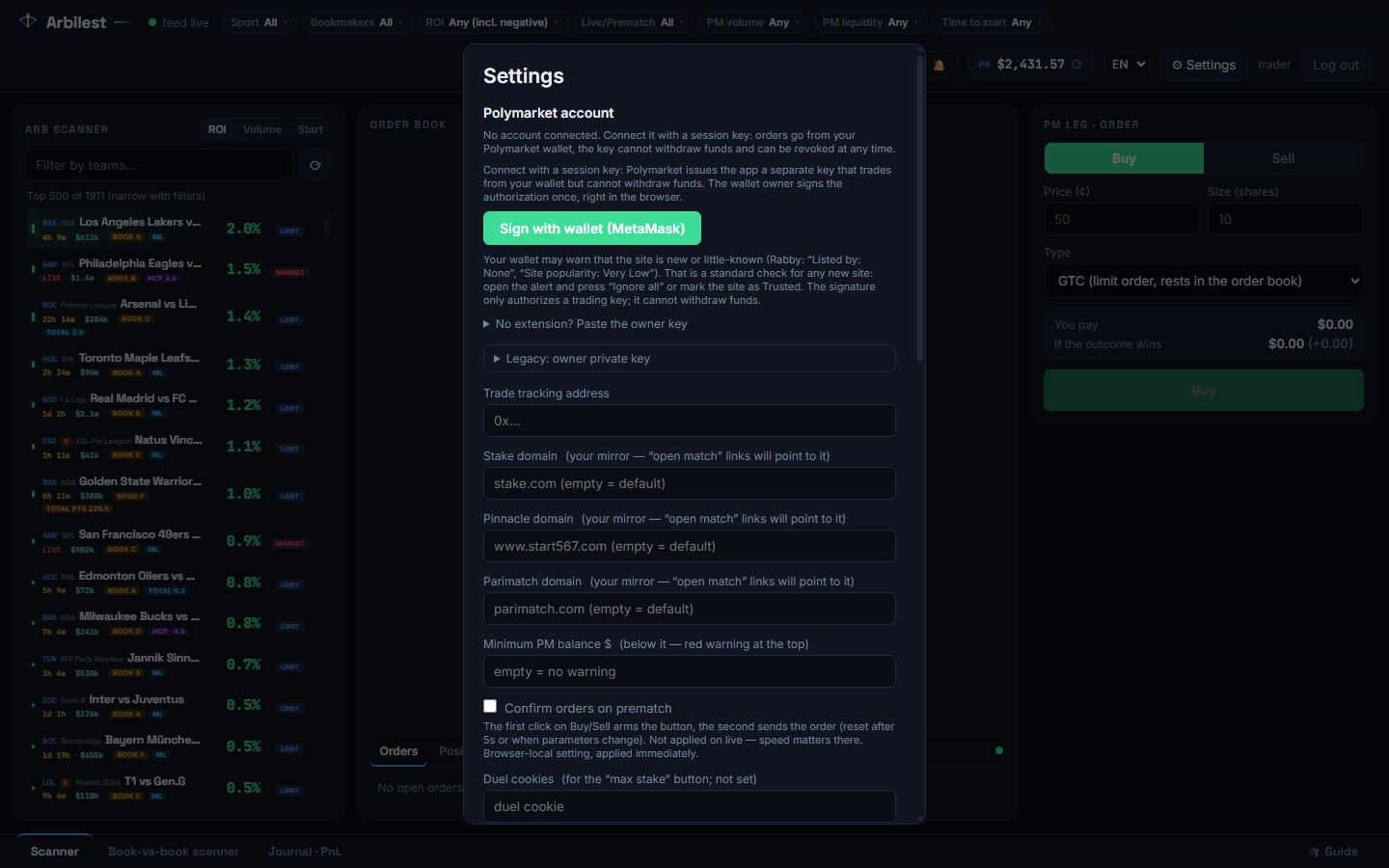
Your wallet may warn that the site is new. Rabby shows “Listed by: None” and “Site popularity: Very Low” for any site that is not yet in its directory. Open the alert and press “Ignore all”, or mark the site as Trusted. The signature only authorizes a trading key.
No wallet extension?
If you log in to Polymarket with email or Google, your account is managed by Magic. Export the private key at reveal.magic.link/polymarket while logged in to polymarket.com, then use No extension? Paste the owner key under the wallet button. The key is used once, in your browser, to produce the same signature, and is cleared from the form immediately.
What the session key can and cannot do
| Can | Cannot |
|---|---|
| Place and cancel orders on the Polymarket order book from your wallet | Withdraw or transfer funds |
| Read your balance, open orders and positions | Change your Polymarket account or its owner key |
| Work for 180 days, then needs a new signature | Redeem winning positions on-chain (do that on polymarket.com) |
You can revoke the key at any time from the same settings block (Revoke key, one more wallet signature) or on polymarket.com. Forget key on server removes it from Arbilest without touching Polymarket.
2. Fund the balance
The Polymarket leg is paid in USDC on Polygon from your Polymarket wallet. For the first arb $10 is enough: a $10 bookmaker stake usually needs $5–15 on the Polymarket side, depending on the price.
- Deposit on polymarket.com with a card, crypto or exchange transfer.
- Return to the terminal. The PM balance badge in the header refreshes itself.
Set a minimum PM balance in settings. When the balance drops below it, the terminal shows a red banner so you do not place an order that cannot be funded.
3. Pick your bookmakers
The bookmaker leg is placed by you, so an arb is only useful if you have a funded account at that book. Open the Bookmakers filter in the header and tick your books. The scanner then shows only arbs you can actually complete.
- Leave the filter empty to see every book. Rows show the book name on a badge.
- Books differ in how fast their odds move. Prematch odds at most books change every few seconds; the row's odds refresh at that cadence.
- Some books limit stakes on arb-friendly accounts. Start small and spread volume across books.
4. Beginner filters
The guide's Apply beginner filters button sets a conservative combination. You can set the same filters by hand in the header.
| Filter | Value | Why |
|---|---|---|
| Live / Prematch | Prematch | No race against a moving score. Live arbs last seconds and need market entry. |
| ROI | ≥ 1% | Rows near zero are noise from odds rounding. 1% leaves room for a slightly worse fill. |
| PM liquidity | ≥ $1K | Enough depth in the order book to fill $5–15 without moving the price. |
| Time to start | ≤ 24 h | Odds have settled, and your money is not tied up for a week. |
Filters are saved per user on the server, so they follow you between devices.
5. Reading an arb
The scanner on the left lists arbs sorted by ROI. Each row shows the sport and league, the match, time to kick-off, Polymarket volume, the bookmaker badge and the bookmaker market, and the ROI with a LIMIT or MARKET tag.
- LIMIT: the arb works with a limit order at the current best bid, as a maker. The order waits in the book; the fill is not guaranteed.
- MARKET: the arb works even when taking the best ask right now. Usually a live arb or a wide gap.
Clicking a row opens its card in the middle column.
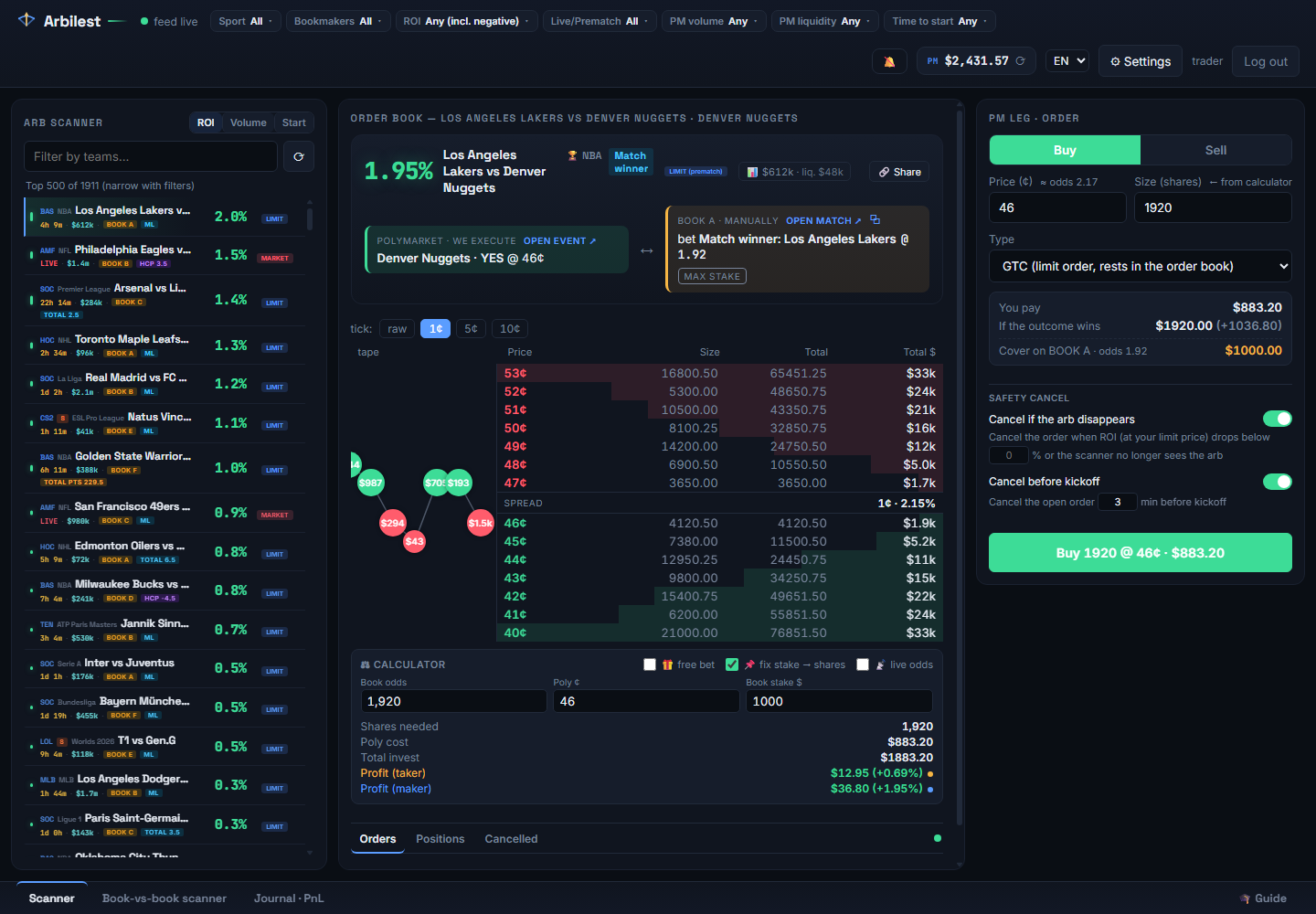
The card
- Polymarket · we execute: the outcome token and the price the ROI was computed at. “Open event” opens the market on polymarket.com.
- Bookmaker · manually: the exact selection to bet at the book and the odds the scanner saw. “Open match” opens the event at the book, with your own mirror domain if you set one in settings.
- Order book: live bids and asks for the token. Click a price to put it into the ticket and the calculator. Your own orders show as badges and can be dragged to a new price.
- Calculator: book odds, Polymarket price in cents, book stake. It outputs the number of shares that balances the arb and the profit in each scenario.
If the arb disappears from the feed while its card is open, the card is frozen with the last known numbers and marked as gone. It comes back to life if the arb returns.
6. Your first arb on $10
- Set the book stake In the calculator, type
10into Book stake $. The guide's button does the same. With fix stake → shares on, the ticket's size follows the calculator. - Check the price The ticket takes the best bid from the order book. For a prematch arb, keep it: a limit order at that price is the maker ROI shown in the row. Click a different level in the book to change it.
- Choose the order type GTC rests in the book until filled or cancelled. FOK fills immediately at the ask or not at all; use it for live arbs.
- Press Buy The ticket shows what you pay and what you get if the outcome wins, plus the bookmaker cover line. The order appears in the book as your badge and in the Orders tab under the calculator.
- Wait for the fill A sound and a toast announce fills and partial fills. Orders placed from an arb are managed: they cancel themselves if the arb's ROI drops below your threshold or shortly before kick-off (see the Safety cancel block in the ticket).
Do not bet at the bookmaker before the Polymarket order fills. A limit order may never fill, and a bookmaker bet on its own is just a bet.
Turn on Confirm orders on prematch in settings if you want a two-click Buy while you learn. It is off by default because speed matters on live arbs.
7. Cover at the bookmaker
When the Polymarket leg fills, a ⚠ Cover at the bookmaker block appears under the calculator. It lists the book, the exact selection, the odds at the moment of the fill and the stake that balances what was actually filled.
- Open the match at the book (the block has the link) and find the selection.
- If the odds moved, type the odds you are getting into the block. The stake updates.
- Place the bet at the book.
- Press Placed ✓. Both legs are written to the journal with the real fill price of the Polymarket leg.
Open covers also show as an amber counter on the Scanner tab in the bottom bar, so you cannot forget one.
If the bookmaker leg is no longer available
Sometimes the book suspends the market or the odds fall below break-even before you place the bet. Options, in order of preference: take the closest available line at the same book, take the same selection at another book, or sell the Polymarket position back into the order book with the ticket's Sell side. The journal lets you edit either leg afterwards.
Journal and PnL
The Journal · PnL tab lists every recorded arb: both legs, stakes, odds, prices and the profit in each scenario. When the Polymarket market resolves, the row settles itself and the realized PnL is added to the total. You can settle or void a row by hand, edit either leg, or jump back to the arb's card.
Positions under the calculator show your open Polymarket positions with the current price and unrealized PnL. Winning positions of a session-key account are redeemed on polymarket.com; the tab says so instead of showing a redeem button.
Anonymised publication. Arbilest may use journal entries for its own promotion: the event, amounts, profit and ROI of an arb can be published on the site and in Arbilest's social channels. No username, e-mail, wallet, bookmaker or Polymarket outcome is published, and an entry cannot be traced back to you.
Notifications and sound
- Sound. The 🔔 button in the header plays a tone when a new arb above your ROI filter appears. It needs one click after the page loads, as browsers block sound before any interaction.
- Telegram. In settings, press the link button, open the bot and press Start. From then on you get messages on fills, partial fills, cancellations and new covers, in the language you use in the terminal, with a button that opens the arb.
- Toasts. Order events also appear as toasts in the bottom-right corner of the terminal.
Fees and ROI
ROI in the scanner, the card and the calculator is net of Polymarket's taker fee for that sport and league. The fee schedule is set by the instance owner and applied without a restart. Maker orders (resting limit orders) pay no fee, which is why the maker ROI in the calculator is higher than the taker ROI.
Bookmaker margins are already inside the odds. Arbilest does not add a fee of its own; order attribution to Arbilest's builder profile does not change your price.
Live arbs
Live rows show a red LIVE tag and update several times a second from the bookmaker feed. They last seconds to a minute. Use the MARKET tag, a FOK order and the best ask; do not wait for a limit fill. Live arbs are hidden by the beginner filters on purpose; switch them on when you are comfortable with the prematch flow.
Account and subscription
Sign-up is open: enter your email and a password, then the 6-digit code from the email. The same code flow resets a forgotten password (Sign in → “Forgot password?”). Accounts created earlier with a username keep working; the terminal asks them to link an email in settings.
After sign-up the terminal stays locked until a subscription is active: you see the plans, pay in crypto, and the scanner opens the moment the payment is confirmed.
Crypto only. Payment goes through the hosted invoice page of the payment provider (USDT, USDC, BTC, ETH and dozens more). Arbilest never sees a card or a wallet key.
- Renewal is counted from the end of the current period, so paying early never loses days.
- Reminders arrive by email and Telegram (if linked) three days before the end and on the day it ends. When the period ends, the terminal shows the subscription screen until you renew; renewing adds days from the moment of payment.
- Underpaid invoices (less than the invoiced amount arrived) are not credited automatically: contact support with the order id.
- Promo codes add days instantly: enter the code on the subscription screen.
- Account sharing is limited: a few parallel sessions per account, extra terminal tabs are paused.
When the subscription ends, the scanner, the arb feed and trading close; your settings, session key, journal and Telegram link stay. The badge in the top bar shows the days left and opens the renewal window.
Security model
- Owner key. Never sent to or stored on Arbilest servers. The wallet signs the authorization; the pasted-key fallback signs inside the browser tab and clears the field.
- Session key. Generated and stored on the server, encrypted per user. It can trade from your Polymarket wallet and nothing else, for 180 days, and can be revoked by you or on polymarket.com.
- Bookmaker accounts. Arbilest never logs in to a bookmaker. Optional per-user settings such as mirror domains only change the links the card opens.
- Accounts. Each user has their own login, settings, filters, journal and keys. Sign-up is by email with a confirmation code; the scanner needs an active subscription (see Account and subscription).
Troubleshooting
The arb disappeared while I was looking at it
Normal. Arbs live from seconds to minutes. The card stays frozen with the last numbers; place nothing on a frozen card. Turn on the sound and let the scanner call you.
The odds at the book are lower than in the row
Prematch odds are polled, so a row can be a few seconds behind the book. Use the odds you actually see: type them into the calculator (or the cover block) and the stake adjusts. If the arb is gone at the real odds, skip it.
“Session key” connection fails with not allowed or invalid authorization
These come from Polymarket's relayer, not from your wallet. not allowed means the instance's builder key is not yet enabled for session keys; invalid authorization means the builder key on the server is wrong. Both are for the instance owner to fix; your signature was fine.
“Signature is not from owner”
The wallet account that signed is not the one that owns this Polymarket account. Switch the account in the wallet (or paste the right owner key) and try again.
Orders are rejected with “maker address not allowed”
The account is connected the legacy way with a wrong signature type. Reconnect with a session key, which sets everything automatically.
The scanner says the feed is reconnecting
The browser lost the WebSocket to the server and is retrying every 1.5 seconds. Nothing to do. If the banner “scanner not responding” appears, tell the instance owner.
The balance badge shows a dash
No account connected, or the session key is not yet picked up by the exchange. Press Test connection in settings; if it reports a balance, reload the page.
Glossary
| Term | Meaning |
|---|---|
| Arb, fork, surebet | Two opposite bets whose combined odds guarantee a profit. |
| PM leg | The Polymarket side of the arb: a YES or NO token on an outcome. |
| Book leg, cover | The bookmaker side of the arb, placed by you. |
| ROI | Net profit divided by total money placed across both legs, after Polymarket's taker fee. |
| Maker / taker | A resting limit order is a maker (no fee); hitting the best ask is a taker (fee applies). |
| GTC / FOK | Good-till-cancelled limit order / fill-or-kill market order. |
| Managed order | An order placed from an arb that cancels itself when the arb is gone or kick-off is near. |
| Session key | A scoped signing key authorized by your Polymarket Deposit Wallet for trading only. |
| Deposit Wallet | The smart-contract wallet that holds your Polymarket funds; owned by your login wallet or Magic account. |